Upload one image
Add a clear still with the subject fully visible. Seedance 2.5 uses that one file as the visual reference, not a first-and-last-frame pair.
Create image to video on SeedGen from a single picture. Describe the motion, keep the subject, and generate a 4-to-30-second clip without switching workflows.
Runs in the browser · no install · new accounts start free
This workflow starts from a finished still and adds motion. It is the right SeedGen path when one picture already holds the subject.

On SeedGen, this workflow means upload one picture, write the action, and generate a short clip. You stay on this page instead of opening every Seedance 2.5 mode.
The current Image tab is a one-image reference. It is not first-and-last-frame control, and it is not the multi-file reference lane. That keeps the task simpler when the still is already correct.
Use it for packshots, scene stills, posters, and illustrated key art. If you need several references, a motion clip, or audio guidance, open reference to video.
Add a clear still with the subject fully visible. Seedance 2.5 uses that one file as the visual reference, not a first-and-last-frame pair.
Write what should move, what must stay, and how the camera behaves. Name the subject action before style.
Choose 4–30 seconds, 480p–1080p, and a supported ratio. Check the credit estimate before you submit.
Submit from this page. Follow progress in Task Center, then download or revise the clip if the motion drifts.
These limits match the Seedance 2.5 Image workflow on SeedGen today. They do not copy Wan first-and-last-frame behavior.

This page starts from a single picture. Seedance 2.5 treats that still as a visual reference so subject, wardrobe, and framing stay close while motion is added.

Set the clip length before you submit. Short product beats and longer camera moves both stay on this page, without stitching separate clips.
Choose 480p, 720p, or 1080p. Reference ratios here are 16:9, 4:3, 1:1, 3:4, and 9:16 — not 21:9 or adaptive.

Keep the clip silent for editing, or generate audio with it when the scene needs ambience, music, or light sound.
Two clips generated from one still each on this page. Open the notes for the prompt, settings, and reference input.
Reference input
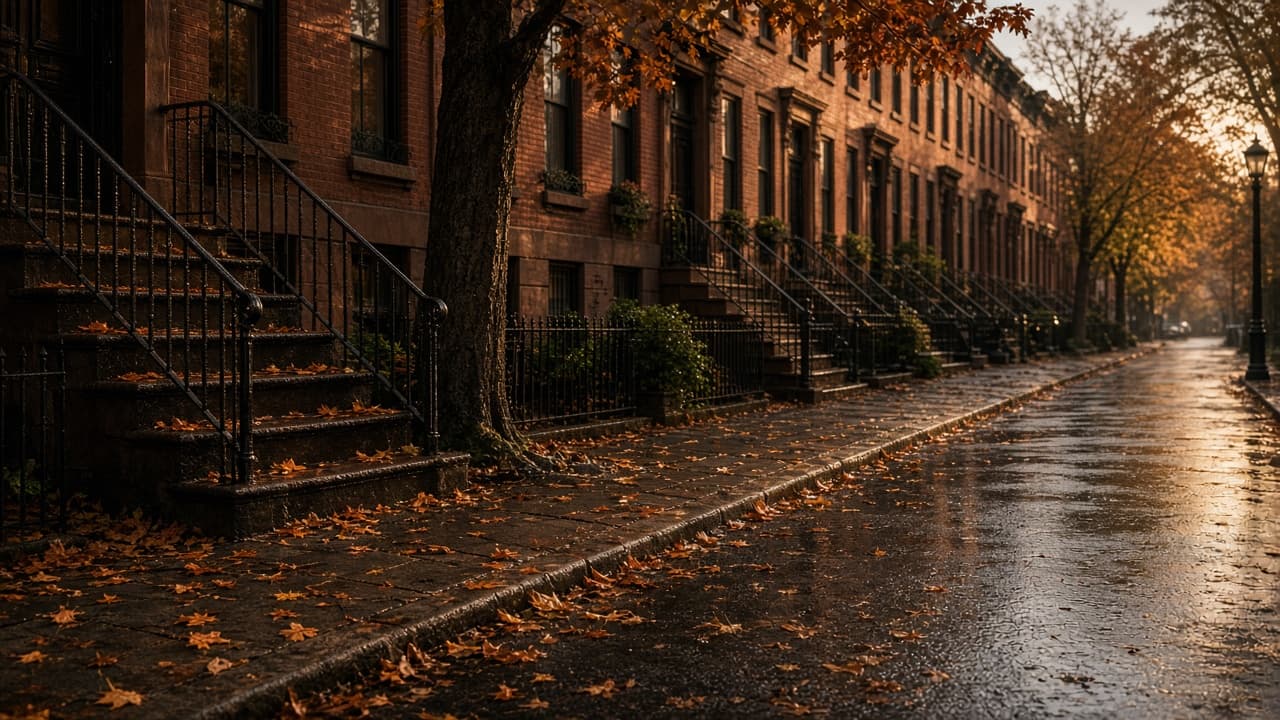
Keep the wet Brooklyn brownstone street and the maple tree by the stoop. Push slowly down the empty sidewalk at golden hour. Fallen leaves drift, rain-dark pavement reflects the warm sky, no people, no cars, no new buildings.
Seedance 2.5 · one still · 4s · 1080p · 16:9 · Smart prompt on
Reference input is the autumn street still. This clip was generated on this page, not reused from the site library.
Reference input
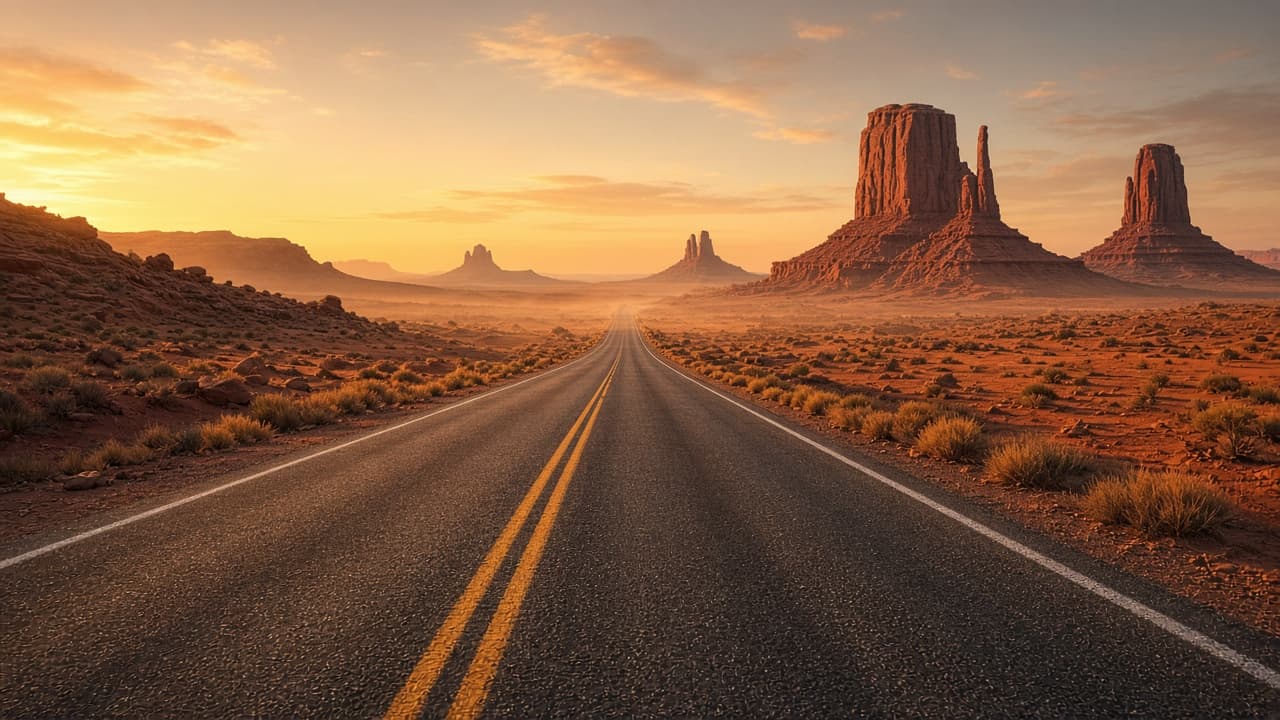
Keep the empty Utah desert highway and the distant red buttes. Push slowly down the center line toward the sunrise horizon. Heat shimmer on the asphalt, light dust in the air, no cars, no people, no new landmarks.
Seedance 2.5 · one still · 4s · 1080p · 16:9 · Smart prompt on
Reference input is the desert highway still. This clip was generated on this page, not reused from the site library.

Turn a packshot into a short clip for a PDP or ad. One photo is enough when you only need rotation, light, or a short camera move.
Add wind, light, or a short camera move to a location still. One picture is enough when the place already holds the shot.
Animate a poster or key art without rebuilding the layout. This is the faster path when the still already has the composition.
Start from illustrated or generated art, then add an entrance or idle move. Switch to reference to video if one image is not enough.
Stay here when one still is enough. Use multi reference when the shot needs more than one file.
One finished still that already has the subject.
Several images, clips, or audio cues that must stay consistent together.
A single image.
Mixed image, video, and audio references.
The Image tab is a one-image reference, not first and last frames.
Multi Reference accepts up to 50 files on Seedance 2.5.
Stay here if one picture already defines the shot.
Open reference to video when you need more than one file.
Short answers on limits, uploads, length, credits, and commercial use.
Credit packs and per-second rates are on SeedGen pricing.
Upload one still, describe the motion, and generate the clip on this page.
Open the generator